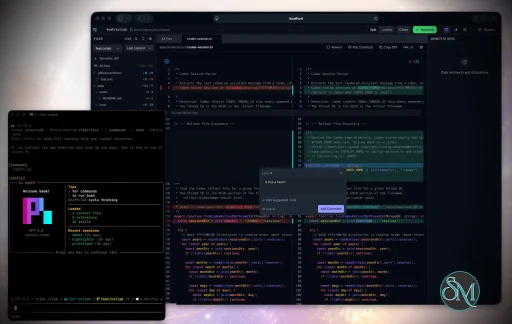
Plannotator is an open-source platform designed to review and validate plans and code generated by AI coding agents.
The platform provides a centralized interface where developers can:
Review AI-generated plans
Annotate proposed actions
Approve or reject tasks
Inspect code changes
Provide structured feedback
Improve agent outputs
Maintain human oversight
Rather than replacing developers, Plannotator aims to keep humans involved in critical decision-making during AI-assisted development.
As AI coding agents become increasingly capable, developers face a growing challenge: ensuring that AI-generated plans and code changes align with project requirements before they are executed. Plannotator addresses this problem by acting as a review layer between developers and AI coding agents.
Instead of generating code itself, Plannotator focuses on making AI-driven development more transparent and controllable. It allows teams to review, annotate, approve, reject, and refine agent-generated plans and code changes before they affect a project.
Download Plannotator v0.28.55 - Software Mirrors |
|---|
Plannotator v0.28.55 for Windowsplannotator-win32-x64.exe | 204.41 MB plannotator-win32-arm64.exe | 190.05 MB |
Plannotator v0.28.55 for macOSplannotator-paste-darwin-x64 | 93.62 MB plannotator-paste-darwin-arm64 | 85.03 MB |
Plannotator v0.28.55 for Linuxplannotator-paste-linux-x64 | 104.07 MB plannotator-paste-linux-arm64 | 104.17 MB |
Plannotator v0.28.55 Source Code |
Plannotator v0.28.55 Release Notes:Follow @plannotator on X for updatesMissed recent releases?
What's New in v0.28.55TL;DR
Plannotator InboxA new comment box, with drafts you can seeWhen you select words in a message, a Markdown or code file, an HTML page or a diagram part, a small card now opens by the words. The quoted words are on top, then the field, then one row: tools at the left, the bin, and a Comment button at the right end. "Comment" is now the button's word everywhere in the Inbox, in place of Save and Add. The chevron at the top right closes the card and keeps your words. Expand grows the card in place, and Escape shrinks it before it closes it. On a phone, or when there is no room beside the words, the card sits at the bottom of the view. Close a card with words in it, and those words keep a pale highlight with a small Draft badge under their end. Click the badge or the words to open the card again. Drafts come back when their document shows again, for example after you visit another thread, or close a file and open it again. Every draft on that document comes back, not only the last one. A reload still drops drafts. On an HTML page, a closed card keeps its words but shows no highlight or badge yet. In full screen (an image, a video or an HTML page), the card is 600 px wide. Its Comment and Reply tabs sit in a tray at the top, with the hide-tools chevron at the tray's end. On the Comment tab, the row has the file's tools, the bin and Comment. On the Reply tab, it has Send, the paperclip and the mic, what goes with the reply, Open in thread and the bin. If you hide the tools while a comment in the card isn't saved, a red dot sits on the corner control. The comment box on HTML pages no longer has a picture button, because pictures were never taken there. On a phone in full screen, Send is the word "Send" at the right end of the row, and there is no bin. From 360 px wide up, the row is one row. Below 360 px, the chips for what goes with the reply move to their own row above the paperclip, the mic and the link, so every button keeps a 44 px tap target. While you dictate in this card on a phone narrower than 430 px, the word "Listening" is not shown. The level, the clock and Cancel stay, and a screen reader still hears the status. #2846Choose how your list looksThe one-time list dialog is now Choose how your list looks, with three looks: Minimal, Balanced and Detailed, each with a small sketch. A short demo plays on an example Inbox window as the dialog opens. A key or a click skips to its end, and with reduced motion the end shows at once. Nothing is picked when it opens, and your current look is marked "Current". Pick a look and a card shows your own threads in it. Done saves the whole look, as a preset in Settings → Rows does. Keep as it is and Escape save nothing, and "Customize rows" in the text opens Settings → Rows. On a phone the dialog is a sheet at the bottom of the screen, with the three looks side by side. The dialog shows once, when your list has five threads or more. People who saw the earlier list dialog see this one once too, and new installs get it. It keeps the usual spacing between one-time dialogs. The presets in Settings → Rows change with it. Minimal is now a two-line row with the thread name first, no preview and no unread dot. Detailed no longer has the subject pill, and it shows each repository's logo on project marks. The logo is read from your disk, and nothing is asked of GitHub. Balanced is unchanged. If you picked the old Minimal or Detailed, your rows stay exactly as they were, and Settings → Rows now calls that look "Custom". Rows with First line set to "Thread name" and Subject preview set to "None" are now two lines instead of three. Line 1 has the thread name and the time. Line 2 has the agent and the project, then the pin, badges, snooze time and counts at its right end. This applies to the rows beside an open thread and to rows on a phone, unless Time position is "Under the preview". Every other combination looks as before. #2886, #2882Update a linked machine from the InboxIf you have linked the Inboxes on two computers and the other one runs an older Plannotator, Update now shows beside it in the sidebar's Machines and on its row in Settings. It opens a small dialog that follows that machine: Update now, then Updating, Restarting and Updated. The other machine asks GitHub for the newest release itself and installs it with the same checksum check and log asplannotator update. Then it restarts its Inbox, even if someone is typing there. This Inbox never sends it a version or a download link.
If the install fails, the dialog says so and shows where the log is, the install command and Try again. An install that reports no error but leaves the old version is shown as failed too. A machine too old to update this way gets the commands to run there by hand: plannotator update && plannotator inbox restart, the same with ~/.local/bin/plannotator for an SSH shell that skips your PATH, and a PowerShell line for Windows. A machine that is asleep, one that hasn't come back after its restart, and one that is already up to date each get their own line.
Snooze on a thread from an older machine is no longer hidden. It reads "Update Mini" (with that machine's name) and opens the same dialog. A tailnet guest's page offers no updates. #2652, #2659
Floating reply drafts, off by defaultFloating drafts are off unless you turn them on in Settings → Capabilities → Experimental → Float reply drafts. With it off, a reply you leave stays in Drafts as before 0.28.54, and drafts that already floated after updating to 0.28.54 stop floating and stay in Drafts, so nothing is lost. Ask AI's minimized window still sits in the corner. #2937 With it on: type a reply of 8 characters or more, or add a file, then leave the thread or close the box with its down arrow or Escape. The draft floats. One corner button sits at the right end of the thread's bottom bar, level with Send. Hover it to see a row for each floating draft, plus this thread's Ask AI chat while Ask is minimized. A row opens its own small window. A draft's window has "Reply toA file tree in All filesIn the full-window review of a guided review, All files now has a file tree on the left, like the one on GitHub: folders that fold, each file's change letter and its line counts. Click a file to go to it, and the "1 of N" menu in the top bar names it. On a phone there is no tree beside the diff. A Files button in the bar opens it as a sheet instead, and picking a file or pressing Escape closes the sheet. Walkthrough has no list, as before. #2753A tip for starting agentsThe first time you open a plain New message where To can start an agent, a small card beside To says "You can now start agents" and "Choose an agent in To and the folder it works in. A pasted path or git URL works too." It shows once, and never if you have already started an agent from the Inbox. It leaves on Got it, Escape, opening To, Send or closing the box. In a narrower window it sits under To, and on a phone it also leaves when you tap a field. Focus never moves to it. #2908Shift+R refreshes the InboxShift+R runs the same refresh as the ↻ above the list, with its spin. It works from the list and from inside a thread, and it reads the open thread again too. On the Board it runs the Board's Refresh. Pages with no refresh, such as Drafts and Settings, ignore it. Plain R is still Reply, and ⌘⇧R or Ctrl+Shift+R still reloads the page. Like other single keys, it does nothing while you type or while a dialog or menu is open, and it is off when Single-key shortcuts is off in Settings → General. It is listed in the? map, and the ↻ tooltip reads "Refresh" with the keys ⇧ R. #2911
Settings: "Delete from Inbox", and Decision data in ActivityIn Settings → Storage, the delete button on every project and thread row now reads Delete from Inbox. The line above the list says: "Deleting removes a thread or project's messages and files from the Inbox. Your code is never touched. Delete asks twice and can't be undone." What Delete does is unchanged. Decision data is now part of Settings → Activity, under the hour-by-hour chart, with the Ask box between the chart and the decision numbers. The separate Decision data section is gone, on a computer and on a phone, and an old link to it opens Activity. The decision numbers are still counted only while Activity is shown. #2910Bro mode is marked ExperimentalBro mode's one-time card now has an Experimental chip. In Settings, the Bro mode row moved from the main list in Settings → Capabilities to its Experimental group, under Decision mode. The card and the row both say: "Applies to new agent sessions. In open Claude Code sessions, run/reload-plugins plannotator." The card's credit now spells Dillon Mulroy's handle correctly and links to his post, and its repository link goes to the Bro skill. #2920
One-time dialogs reach people who keep a thread openSome one-time dialogs waited for you to go back to the list. If you keep a thread open beside the list and move from thread to thread, you never did, so they never showed. Now 20 seconds without input also counts as that moment, while the tab is visible and focused, no field has focus and nothing is open. This applies to the List view, Board, Checklist and Bro mode dialogs and the list look dialog, in every layout. The other rules stay the same: at most one dialog a day, never on the load right after one, and three days' wait after Not now. #2916Links to other repositories' issues and PRsAn agent that coordinates work in other repositories and reports to your Inbox wrote bare refs such as#123. Each one linked into the agent's own repository, because a bare #123 links to the repository where the agent's session started. The Inbox tool now tells agents this plainly. For another repository's issue or PR, they write owner/repo#123 or the full URL in every mention, also when they pass on another agent's report. In trials with fresh agents on the same relay tasks, messages with a wrong link went from 7 of 16 to 1 of 12.
The optional rules note the Inbox adds to your agents' instructions files gets the same rule in one line, as note version 9. An older note you haven't edited is replaced at the next Inbox start. A note you edited is left as it is. #2917
Smaller changes
Not yet onThis release also carries more work on code review in the Inbox and on Shape boards. Both stay off by default, and their switches stay hidden until a later release. The work covers: notes from an agent pinned to the lines of a review; on a PR's page, a Details panel with the description, reviewers, checks and comments, a comments panel that starts closed, and the diff controls in the bar; and Shape boards drawn in one technical style, with fixes from a real run. With Code review on, the review bar of a PR between 768 and 959 px wide lets the PR's title shrink to 5rem and drops the title's separator below 800 px, so the Walkthrough / All files switch always stays. #2865, #2672, #2871, #2732, #2735, #2823, #2901Install / UpdatemacOS / Linux:claude is on your PATH. Otherwise, in a terminal:
/plugin marketplace update plannotator, then open /plugin → Installed → plannotator → Update now.
Pi:
What's ChangedIn 0.28.55:
Community
|
Key Features of Plannotator
Plan Review System
One of Plannotator's core capabilities is reviewing plans generated by AI agents before execution.
Developers can examine:
Proposed tasks
Implementation strategies
Agent reasoning
Planned file modifications
Workflow sequences
This visibility helps reduce unintended changes and costly mistakes.
Annotation Tools
The platform allows users to add comments, notes, and guidance directly to AI-generated plans.
These annotations can be used to:
Clarify requirements
Correct misunderstandings
Provide context
Guide future agent actions
AI Code Review
Plannotator extends the review process beyond planning by supporting inspection of generated code.
Developers can:
Review modifications
Analyze diffs
Leave comments
Request revisions
Validate implementation details
This workflow resembles modern pull-request review systems.
Human-in-the-Loop Workflows
A major design goal is ensuring that AI actions remain subject to human approval.
Organizations can establish review processes where important actions require validation before execution.
Open Source Foundation
Plannotator is open source, allowing teams to inspect, modify, and self-host the platform according to their needs.
This transparency is particularly valuable for organizations adopting AI-assisted software development.
User Experience
The interface is designed around review workflows rather than direct code generation.
Instead of interacting with a chatbot, users primarily:
Receive agent-generated plans
Review proposed actions
Add feedback
Approve or reject changes
Monitor execution results
The workflow feels familiar to developers accustomed to pull requests, code reviews, and project planning tools.
Productivity Benefits
As AI coding tools become more autonomous, review processes become increasingly important.
Plannotator helps organizations:
Reduce risky AI actions
Improve code quality
Increase accountability
Preserve architectural consistency
Encourage collaboration between developers and AI agents
For teams adopting AI-driven development, these safeguards can be as valuable as the coding agents themselves.
Collaboration Features
The platform supports collaborative review workflows where multiple team members can participate in evaluating AI-generated outputs.
This allows:
Peer review
Team approval processes
Shared annotations
Collective decision-making
Such features are especially useful for larger engineering teams.
Performance
Because Plannotator focuses on workflow management and review rather than model inference, performance largely depends on the connected AI agents and integrations.
The platform itself is lightweight and primarily serves as an orchestration and review layer.
Open Source Advantages
Being open source provides several benefits:
Transparent development
Self-hosting capabilities
Custom integrations
Community contributions
Vendor independence
Organizations concerned about compliance, security, or proprietary workflows may find these advantages particularly appealing.
Limitations
Plannotator is designed as a companion tool rather than a complete AI development platform.
Common limitations include:
Requires external AI coding agents
Best suited for teams already using AI-assisted development
Smaller ecosystem than mature developer platforms
Additional review steps may slow rapid prototyping
Some users may prefer fully autonomous workflows
The software delivers the most value in environments where oversight and quality control are priorities.
Pros
Improves transparency of AI-generated plans
Supports structured review workflows
Human-in-the-loop design
Useful annotation system
Open source
Self-hosting support
Familiar review experience for developers
Helps reduce AI-generated mistakes
Cons
Not a standalone coding agent
Requires integration with AI development tools
Smaller community than established developer platforms
Adds review overhead to workflows
Best suited for teams rather than casual users
Who Should Use Plannotator?
Plannotator is ideal for:
Software development teams
Engineering managers
AI-assisted development workflows
Organizations adopting coding agents
Open-source projects
Teams prioritizing code quality and governance
It is particularly valuable for environments where AI-generated code requires oversight before reaching production systems.
Plannotator fills an increasingly important role in the AI development ecosystem by providing visibility and control over AI-generated plans and code changes. Its focus on human oversight, structured reviews, and collaborative workflows makes it a useful companion for modern coding agents. While it is not a replacement for AI coding tools themselves, it offers a practical solution for teams seeking greater confidence and accountability in AI-assisted software development.
Developer:
backnotprop
Operating System:
Windows / macOS / Linux
Date Added:
2026-11-08T23:07:23.417Z
Categories:
Post a Comment/Report Broken Link: