AutoClip is an open-source AI video editing application designed to convert long-form footage into easily shareable short-form content, AutoClip eliminates the need to manually sift through hours of recordings to find engaging moments. Instead, it leverages AI to analyze transcripts, pinpoint essential segments, generate clips, and prepare content for various social media platforms.
The application is ideal for podcasters, content creators, interviewers, educators, and streamers looking to repurpose existing video material for TikTok, Instagram Reels, YouTube Shorts, and other similar platforms.
Unlike cloud-based video editing services, AutoClip performs cutting and rendering locally. Users can choose between cloud-based AI providers and on-premise models, granting them control over processing costs and data management.
Furthermore, the platform extends beyond a standard desktop interface. With support for Docker deployment, command-line tools, and integration with the Model Context Protocol (MCP), AutoClip allows for the seamless incorporation of video production into automated workflows.
Download AutoClip Desktop v1.6.2 - Software Mirrors |
|---|
AutoClip Desktop v1.6.2 for Windows |
AutoClip Desktop v1.6.2 for macOS |
AutoClip Desktop v1.6.2 Python Package |
Others Download related to AutoClip Desktop v1.6.2 |
AutoClip Desktop v1.6.2 Source Code |
AutoClip Desktop v1.6.2 Release Notes:AutoClip Desktop v1.6.2下载与安装 / Download and install
DOCKER.md)或 CLI。Linux 同样没有桌面安装包,请用 Docker、上面的 uvx,或 pip install -e . 跑 autoclip CLI。
两个桌面包都内置便携 Python 与静态 ffmpeg,不需要预装任何东西;Windows 安装包按用户安装,不需要管理员权限,缺 WebView2 会自动下载。
桌面包目前未购置代码签名 / Apple 公证(#119),均由公开 GitHub Actions Desktop Build 构建;运行前可在附件 build-provenance.json 核对安装包 SHA-256(Windows:Get-FileHash AutoClip.Desktop_1.6.2_x64-setup.exe -Algorithm SHA256;macOS:shasum -a 256 AutoClip.Desktop_1.6.2_aarch64.dmg)。
不下载 ZIP 时:uvx autoclip-mcp 安装并启动 MCP,npx skills add zhouxiaoka/autoclip 安装 skill。从源码安装仍可用(在仓库根目录 python -m pip install --no-deps .)。
安装后若项目列表是空的,点首页「用示例项目看看效果」。示例在安装包内,不需要 API Key。
没有字幕的视频,第一次要下载本地转写组件(约 220 MB,国内网络约 15 分钟)。装不上或太慢时,打开「设置 → 默认模型 → 语音转字幕」,改用百炼云端转写;音频会上传到云端。导入被拦住时,点「改用云端转写」。
A video without subtitles downloads the local transcription component the first time (about 220 MB, about 15 minutes on a slow network). Built-in portable Python + static ffmpeg, nothing else to install. On macOS 15 and later, double-click once; if blocked, open System Settings → Privacy & Security → Open Anyway (Apple). Older macOS: right-click the app → Open. Windows is unsigned (SmartScreen → More info → Run anyway); code signing/notarization is tracked in #119. Every installer is built publicly on GitHub Actions (Desktop Build) — verify exact SHA-256 hashes against the attached build-provenance.json (Get-FileHash AutoClip.Desktop_1.6.2_x64-setup.exe -Algorithm SHA256 on Windows, shasum -a 256 AutoClip.Desktop_1.6.2_aarch64.dmg on macOS). There is no Intel Mac desktop build; use Docker or the CLI. If a listed file is missing, that platform's build failed for this tag — see the Desktop Build workflow run.
Without the ZIP: uvx autoclip-mcp installs and starts MCP, and npx skills add zhouxiaoka/autoclip installs the skill. Installing from a source checkout still works (python -m pip install --no-deps . from the repo root).
更新 / Changes要点中文
English
新增
修复与改进
反馈 / Feedback
|
Features
1. AI-Powered Highlight Detection
AutoClip analyzes video transcripts to identify interesting moments that can work as standalone short videos.
Rather than simply splitting a long recording into fixed-length segments, it evaluates the content to find meaningful highlights.
Its analysis capabilities include:
Extracting outlines and topic timelines from video transcripts.
Identifying potentially interesting moments.
Scoring candidate clips based on their content.
Generating titles and descriptions for selected highlights.
Organizing related clips into collections.
Selecting alternative moments when additional clips are needed.
The application can automatically generate multiple clips from a single recording. Users can review the suggested results and request additional alternatives when the initial selection is insufficient.
This approach is particularly useful for interviews, podcasts, lectures, and videos with substantial spoken content.
2. Multiple Video Import Options
AutoClip supports different ways to provide source footage, making it easier to start a project without manually preparing every file.
Supported input options include:
Local video files.
YouTube links.
Bilibili links.
Live stream recordings and supported replay sources.
Optional SRT subtitle files.
For recordings that already include subtitles, users can provide an SRT file to avoid unnecessary transcription.
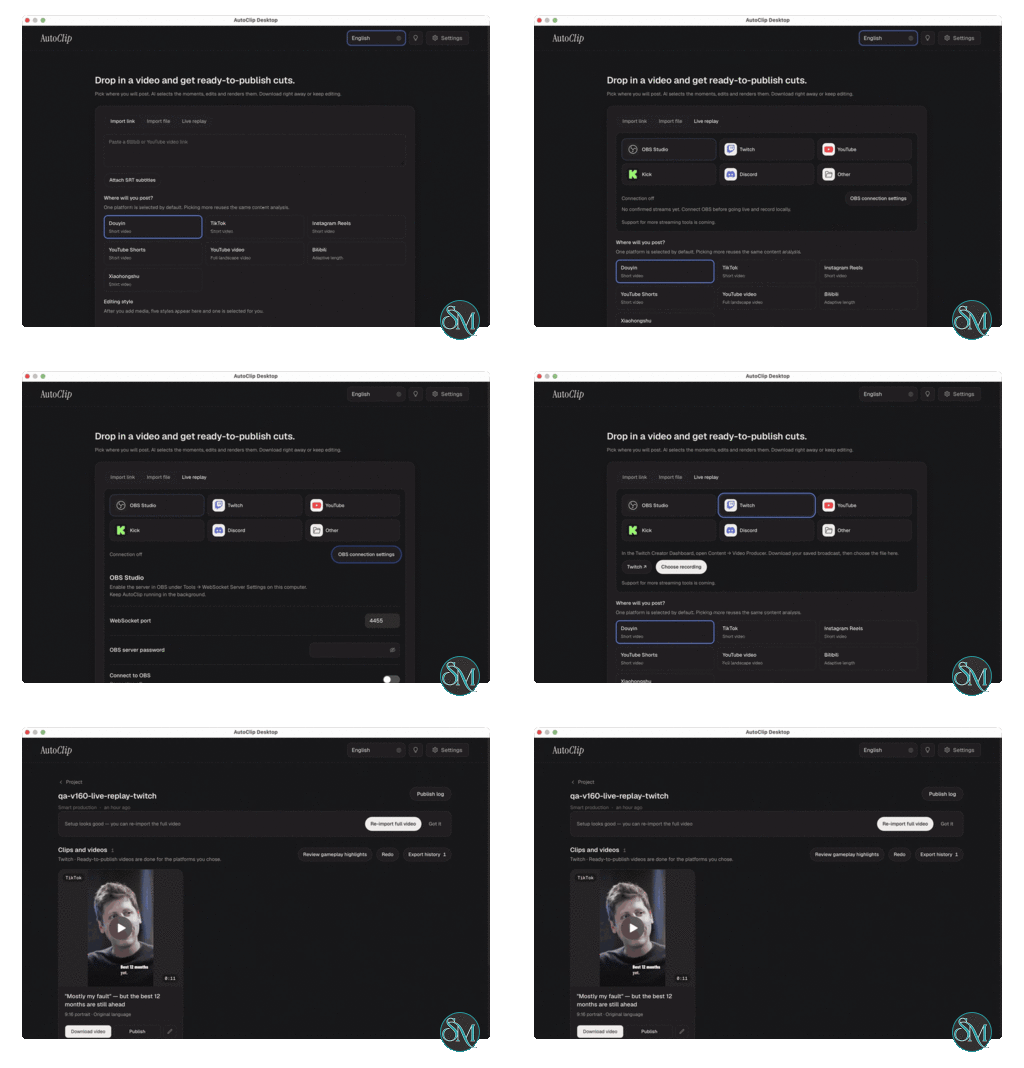
AutoClip also supports live replay workflows, including OBS-based recording integration and Twitch VOD retrieval. This expands its usefulness beyond editing previously downloaded videos.
3. Automatic Subtitle Generation
Subtitles are an important part of short-form video content, and AutoClip provides several ways to generate them.
Users can choose between existing creator-provided subtitles, local speech recognition, and cloud transcription.
Available options include:
Existing SRT subtitles.
Local Whisper transcription.
SenseVoice-based speech recognition.
Cloud transcription through supported providers.
The application can also generate translated subtitles when preparing content for a different audience.
Subtitle styling includes different layouts, colors, animations, and highlighting effects. Depending on the selected output style, captions can follow the spoken content and emphasize individual words.
Using existing subtitles can reduce processing time. Local transcription avoids sending audio to an external transcription service, while cloud transcription can be useful when local processing is too slow or difficult to configure.
4. Automatic Vertical Video Reframing
Converting landscape footage into vertical video is one of the more challenging parts of repurposing long-form content.
AutoClip includes automatic speaker detection and framing to help keep the relevant person visible when converting footage to a vertical format.
Its framing capabilities include:
Detecting people in supported footage.
Following the active speaker.
Adjusting the crop as speakers change.
Supporting interview-style and full-screen podcast layouts.
Preserving the original frame when suitable people cannot be detected.
This is especially useful for interviews involving multiple speakers, where a fixed crop could otherwise leave the person speaking outside the visible area.
Users should still review the final framing, particularly when the source contains several people, unusual camera angles, or frequent movement.
5. Platform-Specific Video Templates
AutoClip can prepare videos for different social media platforms without requiring users to manually configure every output.
It supports publishing-oriented presets for:
TikTok.
Instagram Reels.
YouTube Shorts.
YouTube.
Douyin.
Xiaohongshu.
Bilibili.
The application uses different presentation styles depending on the target platform.
For example:
Douyin and Xiaohongshu default to an interview-style layout with a speaker window, titles, subtitles, and name labels.
TikTok, Reels, and Shorts default to a full-screen podcast layout with speaker tracking and animated captions.
Bilibili and YouTube use landscape output.
Users can also choose between supported vertical layouts without changing the platform-specific language used for captions and publishing text.
AutoClip can generate multiple platform versions from the same source, applying the appropriate aspect ratio, duration requirements, and presentation settings.
6. Automatic Covers and Publishing Content
Creating a video is only part of preparing social media content. AutoClip also generates supporting materials for publishing.
Each generated clip can include:
A cover image.
A title.
A video description.
Relevant hashtags.
Platform-specific publishing text.
An exportable publishing package.
The generated copy is adapted to the selected platform. For example, TikTok and Reels content can use a different writing style from Bilibili descriptions or Xiaohongshu posts.
Cover designs can incorporate the speaker's image, title, and visual styling. Users can also request AI-assisted cover redesigns when a different presentation is needed.
The publishing package makes it easier to download the video and its accompanying materials together.
7. Built-In Video Editor
Although AutoClip automates much of the production process, it does not require users to accept every AI-generated result without modification.
Its Studio interface provides an opportunity to review and adjust the generated content.
Users can inspect the selected clips, review subtitles, adjust the final presentation, and make changes before exporting.
This is important because AI highlight detection is not always perfect. A selected segment may have an incomplete sentence, an awkward transition, or insufficient context.
Having an editing stage makes AutoClip more practical than tools that only generate clips without allowing users to review the results.
8. Live Replay and Livestream Workflows
AutoClip also supports workflows involving livestream recordings.
Its live replay functionality includes OBS integration and supported Twitch replay sources, allowing creators to process recordings after a livestream.
This is particularly useful for streamers who want to extract highlights without manually reviewing an entire broadcast.
The project has also introduced additional replay import and recording workflows, making it possible to connect livestream capture with its existing AI clipping pipeline.
However, the available sources and integration capabilities depend on the current implementation. Users should check the documentation for the specific replay source they intend to use.
9. Local AI Models and Cloud Providers
AutoClip does not force users to rely on a single AI provider.
It supports configurable cloud services as well as local model environments through Ollama and LM Studio.
This gives users several options:
Cloud models for convenient AI analysis.
Local language models for processing without cloud API charges.
Local Whisper or SenseVoice for speech transcription.
Cloud transcription when local speech recognition is unavailable or too slow.
Vision-capable models for analyzing footage with limited dialogue.
Users can configure compatible API endpoints and select the models they want to use.
This flexibility is valuable for users who already operate local AI infrastructure or prefer a particular model provider.
However, local processing requires suitable hardware and properly configured models. Using a cloud provider may be more convenient, but its API usage is billed separately.
10. CLI and MCP Integration
AutoClip is not limited to interactive desktop use. It includes command-line functionality and an MCP server for automation.
The CLI can be used to produce clips, export videos, inspect projects, check model configurations, and publish content.
Example commands include:
autoclip produceto generate clips from source footage.autoclip outputsto inspect generated output and export publishing kits.autoclip exportto render clips using platform presets.autoclip publishto publish selected clips through supported integrations.autoclip providersto inspect available AI providers.autoclip doctorto check the processing environment.autoclip mcpto start the MCP server.
The MCP integration exposes video processing and publishing operations to compatible AI assistants and agent environments.
This makes AutoClip particularly interesting for developers who want to automate content production or connect video workflows to AI agents.
11. Social Media Publishing Integration
AutoClip includes publishing functionality for supported platforms.
Users can configure their connected accounts and submit finished clips through the application's publishing workflow.
Supported integrations include Bilibili and overseas social media platforms through Upload-Post.
The Upload-Post integration supports services such as:
TikTok.
Instagram.
YouTube Shorts.
Facebook.
LinkedIn.
X.
Threads.
Pinterest.
Bluesky.
Publishing requires the appropriate account connections and external service credentials. Upload-Post has its own account limitations and usage policies, which are separate from AutoClip.
Users who prefer manual publishing can simply export the finished videos and publishing materials.
12. Docker and Self-Hosting
For users who do not want to use the desktop application, AutoClip also provides a Docker-based Web deployment.
This makes it possible to run the application on a Linux server or another Docker-compatible environment.
The self-hosted deployment includes:
A browser-accessible interface.
Backend API functionality.
Persistent application data.
Configurable AI provider credentials.
Video upload and processing directories.
A basic deployment can be started with Docker Compose:
git clone https://github.com/zhouxiaoka/autoclip.git
cd autoclip

cp env.example .env

mkdir -p data logs uploads

docker compose up -d --build
After the services start, users can access the Web interface and configure their preferred AI provider.
The Docker deployment is especially useful for users who want a self-hosted environment or prefer managing video processing through a server rather than installing the desktop application.
Performance and Compatibility
AutoClip combines AI-based content analysis with local video processing. Its performance depends on several factors, including source video duration, transcription method, selected AI model, and available hardware.
The application uses FFmpeg for video processing and rendering. AI analysis can run through cloud providers or local models, while speech recognition can use local or cloud-based services.
Its local-first processing approach is a notable advantage. Cutting, reframing, and rendering take place on the user's computer rather than requiring the entire source video to be uploaded to a remote editing service.
However, local rendering does not mean every feature is completely offline.
Depending on the selected configuration:
Cloud analysis sends relevant subtitles and text to the selected provider.
Visual analysis sends sampled video frames to a cloud model.
Cloud transcription sends audio to the transcription provider.
AI image generation may send reference frames to an external service.
Publishing uploads finished videos to connected platforms when requested.
Users can choose local models and transcription to reduce external data transfers, although downloading models, application updates, and some integrations still require an internet connection.
The desktop application currently provides installers for Windows x64 and macOS Apple Silicon. Linux users and Intel Mac users can use Docker or the CLI instead.
Another consideration is that the desktop installers are currently unsigned. Windows SmartScreen, antivirus software, or macOS Gatekeeper may therefore display security warnings during installation. The project provides build provenance information and SHA-256 hashes to help users verify downloaded packages.
System Requirements
AutoClip has different requirements depending on the installation method.
Desktop application
Windows 10 or later, x64.
macOS on Apple Silicon.
Python and FFmpeg are included in the desktop installers.
Docker deployment
Linux or another Docker-compatible operating system.
Docker installed.
Docker Compose v2.
Sufficient storage for source videos, generated clips, application data, and temporary processing files.
CLI and MCP
Python 3.10 or later.
Python 3.11 recommended.
FFmpeg and FFprobe available in the system PATH.
A compatible AI provider or configured local model.
Redis is not required for local CLI usage.
AI processing
Cloud API credentials for the selected cloud provider, or
Ollama or LM Studio with downloaded local models.
Additional speech recognition components when using local transcription.
Hardware requirements depend heavily on the selected local models and video resolution. Larger language and speech models require more memory and processing resources.
Pros and Cons
Pros
Free and open-source under the MIT License.
Automatically identifies highlights in long videos.
Supports podcasts, interviews, lectures, and livestream recordings.
Generates subtitles and translated captions.
Automatically reframes videos around speakers.
Provides platform-specific video layouts and export presets.
Generates covers, titles, descriptions, and hashtags.
Includes an editor for reviewing generated clips.
Supports local AI models through Ollama and LM Studio.
Offers cloud and local transcription options.
Includes CLI and MCP integration for automation.
Supports Docker-based self-hosting.
Provides publishing integrations for supported platforms.
Cons
AI-generated highlights and subtitles still require manual review.
Best results are generally achieved with speech-heavy content.
Gameplay and other visual content may require a vision-capable model.
Cloud AI usage can introduce additional costs.
Local models require suitable hardware and configuration.
Windows and macOS desktop installers are currently unsigned.
No native desktop installer is currently provided for Linux or Intel Macs.
Publishing to some platforms requires external accounts and services.
How to Install
AutoClip offers several installation methods depending on your operating system and intended workflow.
Desktop Installation
Open the official AutoClip GitHub repository.
Navigate to the Releases section.
Download the Windows installer or macOS Apple Silicon package.
Install and launch the application.
Open the settings and configure an AI provider or local model.
Test the model connection and save your configuration.
Import a video or supported link and start generating clips.
The desktop installer includes Python and FFmpeg, so users do not need to install these dependencies separately.
Docker Installation
For Linux users and those who prefer self-hosting:
Install Docker and Docker Compose v2.
Clone the AutoClip repository.
Copy the example environment configuration.
Create the required persistent directories.
Start the application using Docker Compose.
git clone https://github.com/zhouxiaoka/autoclip.git
cd autoclip

cp env.example .env
mkdir -p data logs uploads

docker compose up -d --build
Configure the required environment variables and AI provider settings before using the application.
CLI Installation
For command-line and automation workflows, AutoClip requires Python 3.10 or later and FFmpeg.
A convenient installation method is:
uvx autoclip-mcpAlternatively, install the CLI from the repository using a Python virtual environment and the project's requirements.
Refer to the official documentation for the complete CLI and MCP setup instructions.
Final Verdict
AutoClip is an impressive open-source AI video clipping application that combines highlight detection, automatic subtitles, speaker tracking, video reframing, and publishing preparation in one workflow.
Its biggest advantage is the combination of automation and local processing. Users can generate short-form videos from long recordings without relying entirely on a cloud-based editing service. The ability to choose between cloud AI providers and local models also provides flexibility for different budgets and privacy requirements.
The additional Docker, CLI, and MCP interfaces make it more versatile than a conventional desktop video editor. Developers can integrate it into automated workflows, while content creators can use the graphical interface to generate and review videos.
There are still limitations. AI-generated clips are not guaranteed to be publication-ready, local models require adequate hardware, and some cloud features introduce external API costs. The unsigned desktop installers are also worth considering before installation.
Nevertheless, AutoClip is a strong option for anyone who regularly repurposes podcasts, interviews, courses, and livestream recordings into short-form content.
Sources:
Post a Comment/Report Broken Link: