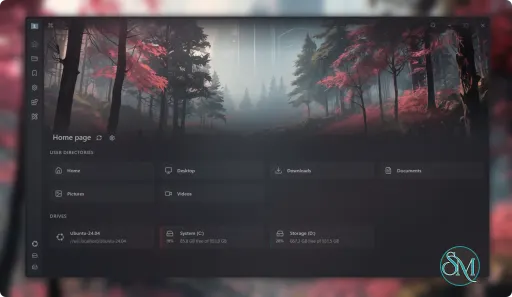
Sigma File Manager is a free, open-source file management application designed as an alternative to traditional tools like Windows File Explorer. It combines a modern interface with productivity features, including global search, multiple tabs, split-pane navigation, file previews, tagging, and network sharing.
Available for Windows and Linux, Sigma is designed for users who frequently work with large collections of files and desire greater control over how they navigate, organize, and transfer data. Its extension system also allows users to add functionality beyond what is included in the core application.
Features
Smart Global Search
One of Sigma's standout features is its global file search. It can locate files and folders across indexed locations and supports flexible queries that account for misspellings, incorrect capitalization, missing words, and different word orders.
The project reports search performance of around two seconds across a 1 TB drive under its stated conditions. Actual results will depend on the storage device, indexing state, and system hardware.
Tabs and Split View
Sigma supports multiple tabs, allowing users to keep several directories open and switch between them without repeatedly navigating through folder hierarchies.
Its split-view mode displays two independently navigable locations side by side. This is particularly useful when moving or copying files between directories, comparing folder contents, or organizing project assets.
File Management and Organization
The application provides common file operations alongside additional organization tools:
Copy, move, rename, and delete files and folders.
Drag and drop items between directories and applications.
Filter files using patterns and properties such as size, date, and MIME type.
Organize files with tags and favorites.
Access frequently visited locations and browsing history.
View file properties, paths, permissions, and other information.
Browse detected Windows Subsystem for Linux distributions on Windows.
The dashboard and quick-access features help users reach frequently used files and locations without navigating through the entire directory structure.
Quick View and Archive Support
Sigma includes a built-in Quick View feature that lets users preview supported files by pressing the Space key. Supported content includes images, videos, audio, PDFs, and text files.
It also provides archive management for creating and extracting ZIP files. This keeps common compression tasks accessible without requiring a separate archive application for basic ZIP operations.
Extensions and Marketplace
The extension system makes Sigma more flexible than a conventional file manager. Users can install extensions from its marketplace or local folders to add commands, pages, shortcuts, and settings.
Extensions can also provide additional utilities, including media conversion, image optimization, and video downloading. The marketplace makes it possible to expand the application's functionality without waiting for every feature to become part of the core program.
Extensions run in isolated JavaScript module environments with permission controls. However, users should still review extension permissions and trust the source before installing third-party additions.
LAN File Sharing
Sigma can share files and folders over a local network. Other devices can access shared content through a web browser, making it convenient to transfer or stream files without installing a dedicated client on every device.
The application also provides FTP-based sharing, including support for transferring files between devices. QR codes and shareable addresses simplify connecting from phones, tablets, and other computers.
Network Locations
Sigma includes experimental support for connecting to remote storage locations through protocols such as SSHFS, NFS, SMB, and CIFS.
This feature is useful for users who manage files across network-attached storage, Linux servers, and shared folders. Since network-location support is still marked as alpha, it should be tested carefully before being used as a primary workflow.
Customization and Keyboard Shortcuts
The interface supports visual customization, including backgrounds, transparency, and other appearance settings. Keyboard shortcuts and a command palette make common actions accessible without relying entirely on mouse navigation.
The application also supports localization, making it accessible to users working in different languages.
Download Sigma File Manager v2.3.0 - Software Mirrors |
|---|
Sigma File Manager v2.3.0 for Windows |
Sigma File Manager v2.3.0 for LinuxSigma-File-Manager-2.3.0-linux.flatpak | 17.07 MB Sigma-File-Manager-2.3.0-linux.deb | 23.57 MB Sigma-File-Manager-2.3.0-linux.chromium-x86_64.AppImage | 154.88 MB |
Sigma File Manager v2.3.0 Source Code |
Sigma File Manager v2.3.0 Release Notes:DownloadSee the assets section below to download the installer for your platform.Release NotesSummary: Navigation panel with a folder tree, per-folder view options and grouping, undo for file operations, portable and signed Windows builds, an experimental Chromium build for Linux, redesigned tabs, folder cards and dashboard, faster folder sizes, safer file operations, and stricter extension security.New FeaturesNavigation PanelA resizable panel on the left side of the navigator. Open it with theNavigation panel button in the window toolbar or with Alt+Q.
Folder Options And GroupingEach folder now remembers its own layout, sorting, grouping, and hidden items setting. Change them in the newThis folder options menu next to quick search. In split view, each pane has its own menu.
Undo For File OperationsAfter you rename, move, or trash items, the notification shows anUndo button and the paths of the affected items. Undo for trash is not available on macOS.
Multi-Range And Keyboard Selection
Duplicate And Separate Tabs
Windows Portable And Signed Builds
Linux Chromium BuildAn experimental AppImage that bundles Chromium instead of using WebKitGTK, for systems where the regular build is slow. The regular Linux builds are still available.
ExtensionsExtension SecurityExtensions are isolated more strictly from the app and from the network.
New Settings
New Shortcuts
New Languages
UX ImprovementsDashboardThe dashboard page has a new design with an overview of favorite, tagged, frequent, and recently viewed items.
Clipboard
Folder SizesFolder sizes are calculated faster and no longer slow down navigation.
Quick Access And Tags
Archives
Paths, Terminal, And Settings
UI Improvements
Bug Fixes
SupportConsider supporting my work on Patreon (monthly, with rewards):Other contributions
|
Performance and Compatibility
Sigma File Manager uses the Tauri framework in its second-generation architecture, replacing the earlier Electron-based implementation. This change substantially reduces the application's installation and storage footprint compared with its previous architecture.
Its modern interface is designed around quick navigation and responsive file browsing. Features such as indexed search, directory monitoring, and split views are particularly useful for users working with large folder structures.
Sigma supports 64-bit Windows and Linux. macOS is listed as technically supported by the project, but official precompiled builds are not provided. Linux distribution compatibility and installation experience may vary depending on the packaging format and desktop environment.
One consideration is that Sigma is an evolving project. Some advanced capabilities, particularly network locations, remain experimental. Users who depend on specialized file-system integrations should verify compatibility with their environment before switching from an established file manager.
System Requirements
64-bit Windows or Linux.
64-bit processor architecture.
Sufficient storage for the application and its local data.
Network access for LAN sharing and remote network locations.
Additional system dependencies may be required depending on the Linux installation package.
The project does not specify a universal minimum RAM or processor requirement. Actual resource consumption will depend on the number of open tabs, file previews, indexing activity, and installed extensions.
Pros and Cons
Pros
Free and open-source file manager.
Modern interface with extensive customization.
Fast global search with typo-tolerant queries.
Multiple tabs and independent split-pane browsing.
File tagging, favorites, and dashboard access.
Quick previews for images, videos, audio, PDFs, and text.
Extensible architecture with a built-in marketplace.
LAN sharing through browser access and FTP.
Supports Windows and Linux.
Cons
No official precompiled macOS release.
Some network-location features are still experimental.
Extension quality and compatibility can vary.
Not every advanced feature is as mature as native file-management tools.
Users may need to adjust their workflow when replacing the default file manager.
How to Install
Windows
The easiest installation method is through Windows Package Manager:
winget install sfmAlternatively, download the Windows installer from the project's GitHub Releases page.
Linux
Sigma provides several Linux distribution options, including Flatpak, Snap, and an experimental AppImage build.
For Flatpak, download the package and install it with:
flatpak install ./Sigma-File-Manager-*-linux.flatpakFor the Snap package:
sudo snap install sigma-file-manager --edgeThe available installation formats and release assets may vary between versions. Check the official release page for the latest packages.
Final Verdict
Sigma File Manager is a capable alternative to traditional desktop file managers, particularly for users who want faster navigation and more flexible file organization. Its combination of global search, tabs, split views, quick previews, tagging, and LAN sharing makes it useful for everyday file management as well as more demanding workflows.
The extension marketplace is another important advantage, allowing users to add functionality without relying exclusively on built-in tools. Its move to Tauri also gives the newer architecture a considerably smaller footprint than the previous Electron-based application.
However, the project is still evolving, and experimental network support may not be suitable for every environment. The lack of official macOS binaries is another limitation for users on Apple's desktop platform.
Overall, Sigma File Manager is worth considering if you want a modern, customizable, and extensible file manager for Windows or Linux.
Sources
Developer:
Aleksey Hoffman
Operating System:
Windows / Linux
Date Added:
2026-11-25T21:07:16.726Z
Categories:
Post a Comment/Report Broken Link: