PhoneBox is an open-source application that transforms an old Android smartphone into a customizable dashboard and touch control panel for your computer. Instead of leaving an unused phone in a drawer, you can repurpose it as a dedicated screen for monitoring system resources, controlling media, managing AI coding sessions, and triggering desktop actions.
The application consists of two components: an Android app that displays the dashboard and a desktop agent that collects system information and executes supported commands. They communicate through USB or a paired Wi-Fi connection. PhoneBox supports Windows, Linux, and macOS, and does not require an account or cloud service.
Features
Customizable Dashboard and Widget Editor
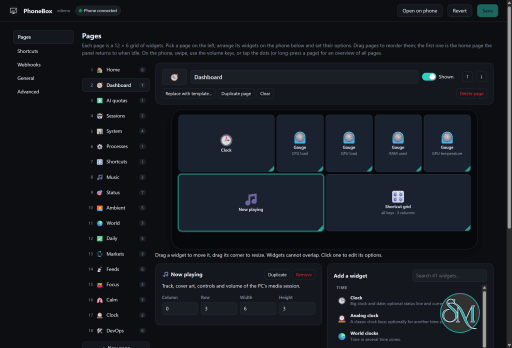
PhoneBox includes more than 120 widgets and 30 templates for building personalized dashboards. Its browser-based editor lets you arrange, resize, and configure widgets on a 12 × 6 grid.
You can create multiple pages for different purposes, such as system monitoring, AI coding, music, productivity, and desktop controls. It also supports portrait and landscape layouts, live previews, appearance customization, and Smart Stack, which can rotate through multiple widgets in one space.
System Monitoring
PhoneBox turns your Android phone into a secondary system-monitoring display. It can show CPU and GPU utilization, memory consumption, disk activity, network speed, and ping information.
Additional widgets provide GPU details, temperature readings, resource charts, and running-process information. Hardware monitoring capabilities depend on the operating system, available drivers, and installed utilities.
AI Coding Assistant Monitoring
One of PhoneBox's more interesting features is its integration with AI coding tools. It can display usage quotas, reset times, and estimated consumption rates for supported services, including Claude, Codex, and Antigravity.
The sessions widgets also monitor local Claude Code and Codex activity, including model information, session timing, and token details. GitHub review and CI status widgets provide additional visibility into development workflows.
Claude Code permission prompts can optionally appear on the phone, allowing you to approve or deny requests without returning to your computer. An optional CodexBar integration provides additional quota providers and usage-cost information.
Desktop Control Deck
PhoneBox includes a collection of touch controls that make an Android phone function similarly to a Stream Deck.
You can configure application shortcuts, website links, keyboard combinations, macros, and custom tasks. Other controls cover system volume, microphone settings, media playback, application audio, and OBS operations.
Some advanced controls depend on the operating system and additional utilities. This means the available functionality is not necessarily identical across Windows, Linux, and macOS.
Media and Productivity Widgets
The application includes widgets for displaying currently playing media, controlling playback, and listening to internet radio.
It also offers clocks, weather information, calendars, notes, checklists, countdowns, timers, and Pomodoro sessions. These features make it useful as a small productivity display rather than simply a hardware-monitoring panel.
Automation and Integrations
PhoneBox supports webhook-based automation, allowing external applications and scripts to push values and notifications to the dashboard.
It also integrates with Home Assistant for displaying information and controlling supported devices. Automation rules can react to computer activity and trigger configured actions.
Additional integrations include RSS and Atom news feeds, GitHub information, Discord, and optional Tailscale connectivity.
USB and Wi-Fi Connectivity
PhoneBox supports two connection methods.
USB connectivity uses Android Debug Bridge (ADB) and USB debugging. It can automatically open the dashboard when the phone connects and supports installing or updating the Android application.
Wi-Fi pairing provides a cable-free alternative. You can pair the phone by scanning a QR code and confirming a matching security code. It does not require USB debugging or ADB.
The application also supports pairing multiple phones with separate layouts and switching a phone between paired computers.
Privacy and Security
PhoneBox does not require an account and does not include its own telemetry or analytics. Its desktop settings interface listens on localhost, while optional Wi-Fi communication uses HTTPS with a pinned certificate and paired key.
Configured commands and integration credentials remain on the computer rather than being transferred as arbitrary commands from the phone. Optional integrations can still communicate with external services to retrieve information such as weather, AI usage, and GitHub data.
One security consideration is that the Windows desktop agent is currently distributed without a code-signing certificate while its signing application is pending. Windows SmartScreen or antivirus software may therefore display warnings. Review the installation scripts and security documentation before running them.
Windows 11 on ARM: native ARM64 agent ZIP and architecture-aware PowerShell setup (#602).
Widgets
Stocks: a configurable stock watchlist and intraday charts widget (#595).
East Money stock forum: a stock forum widget (#594).
Water intake: a local water intake tracker widget with reminders (#592).
Charts: add a point only for a new sample from the PC (#564, WellyngtonSantos), keep chart lines visible with Windows hardware sensor setup help (#590), and show when a chart requests unknown metrics (#591).
Synced lyrics: drop bracketed extras and extra artists when searching LRCLIB (#569, haop2922-ai).
Device batteries: keep connected Windows Bluetooth audio batteries visible (#588) and fix battery recovery (#581).
Discord on Windows: Choose on PC (screen share) brings Discord's window to the front. Discord draws its picker
inside its own window, so with Discord minimized, behind other windows or in the tray the button seemed to do
nothing. With more than one Discord build running (stable, PTB, Canary), the one PhoneBox is connected to comes
forward, since that is where the picker opens (#539, #543, DarkusK).
Discord: a current channel bar widget, any size from 2 × 1 up to a full row: the voice channel you are in, who is
there, mute, deafen and leave, and Screen / Chat that open those tabs of the Discord widget. Outside a voice channel
it hides and the widgets next to it take its place. Its own Control allows only mute, deafen, leave and stopping
a screen share; starting one, the app list and the chat stay with the Discord widget (#540,
DarkusK).
Discord: a Side by side layout, as an option next to the list (the default), for tablets and large widgets. The
left side shows the voice channel you are in with who is there, mute, deafen and leave; the right side has tabs for
the chosen server's voice channels as big keys, the chat and the screen share. A server switcher keeps the servers
you used lately, and outside a voice channel Back to returns to the last one (#516,
DarkusK).
Control Deck: Mics off, camera off, next to Emergency mute. One tap mutes every microphone the computer can control, leaves the speakers
as they are and stops the OBS virtual camera. Like Emergency mute, it drops a held push-to-talk key and keeps
retrying a microphone that refuses. The phone says what happened to each, and Camera not turned off when OBS is
not connected or did not stop it; a physical webcam is not touched (#387, #476,
CrippledHelix).
News feeds on Windows: a headline opens the article in the default browser again, not in File Explorer. Links now go
to Windows' URL handler instead of explorer.exe, which mistook some links (a long one, or a short one with a query
string) for a path (#386, #411, Exrahn,
dedesoso3366).
CPU tile: the CPU's power next to its temperature (53°C · 4 W), and CPU power as a choice in the Metric tile,
Gauge and Chart. Windows reads it from LibreHardwareMonitor; Linux from RAPL, which most distributions let only
root read (#442, #489, sszxt).
AI sessions: the open conversation of a Claude Code session follows new messages while it is read to the end; one
scrolled back to an earlier message stays there (#460, MisteryLiuCode).
Spotify queue: a track tapped in the widget plays inside the playlist or album that is playing, so the rest of it
follows as in the Spotify app. A track you queued by hand still plays on its own (#441,
HugoDeLannoy5311).
Synced lyrics: a music video from the VEVO channel of an artist with a name of more than one word ("Tan Bionica -
Song" from TanBionicaVEVO) finds its lyrics. The channel name drops the spaces, so the title was not split into
artist and song (#551).
Shortcuts: an Icon size per shortcut (Settings › Shortcuts): Default, Medium, Large or Maximum, where the icon
fills the key. It applies to an emoji and an uploaded picture, on any key (Shortcut grid, Big button, cycle keys); a
program's own icon keeps its size (#542, leosantana).
AI quotas and Sessions: Grok. The quotas card shows the current credit window, the plan, the product split and a
prepaid balance, read with the Grok CLI's own sign-in (grok login), which PhoneBox never refreshes, logs or sends
to the phone. It asks only while an enabled page shows Grok. The Sessions card lists Grok CLI sessions from
~/.grok/sessions (project, status, model, effort and token counts; the chat stays on the computer) (#548,
dpackham).
Synced lyrics: Timing offset per player, one Name=ms per line with the player's name as Now playing shows it
(for example Apple Music=1000), for a player whose position runs behind the sound while others don't. On Windows,
Apple Music now shows as "Apple Music" instead of "AppleInc" (#557,
avery02072003-cmyk).
Agent
Phone bridge (macOS, off by default): enable two-way plain-text clipboard sharing over USB or paired
Wi-Fi in Settings › Phone bridge (#528). The Mac can receive phone notifications and optionally copy
one-time login codes (#530). Its native notifier shows the PhoneBox icon, can attach a phone app icon when
supplied, and falls back to osascript (#534, Vasilispapg).
WorkBuddy (off by default): opt-in WorkBuddy AI sessions and phone permission approvals (#596).
Claude Code extra accounts: support multiple Claude Code accounts with a claude@ quota card each, sessions from each account, and per-account hook installation listed before writing (#538, #567, #568, #570, egin10).
Rules: a new Show the night screen (night) rule action shows the night screen while a rule is active and returns when it ends (#330, #597, Nero-Dark).
Linux on GNOME Wayland (Ubuntu's default session): shortcuts that type text or press keys work with ydotool
installed; GNOME takes neither wtype nor xdotool. A key press or typing that fails now says so instead of
reporting success, and xdotool is used on Wayland only when neither of the others is installed, since there it
exits without an error having typed nothing. Setup is in docs/SETUP.md (#544,
denis-nd).
Settings › General › Sleep the phone with the Lock shortcut, off by default: running the built-in Lock shortcut
also turns the connected phone's screen off over USB (#520, #521, sanjai4334).
macOS and Linux: Now Playing is read every second only while a Now playing or Synced lyrics widget is on the
page on screen (also inside a Smart Stack), or a media-playing rule exists. A panel that is merely on screen used
to keep it at one reading a second all day, and on macOS each reading starts nowplaying-cli (and osascript
when nothing is playing): about 13 % of a core in the report. Otherwise it is read every 10 seconds. The widgets
ask through the new GET /api/media, so a phone app older than this agent shows track changes up to 10 seconds
late until it is updated (#523, archiline0805-wq).
Settings › Display › Wake and unlock, off by default: when the agent opens PhoneBox on a phone just plugged in
over USB, it also steps over a swipe-only lock screen, but only when the phone reports its lock screen is showing.
A PIN, pattern or password is never passed, nothing else on the screen gets a tap or swipe, and nothing is polled
(#419, Nero-Dark).
Settings: two saves within a few milliseconds no longer share one settings version on Windows, where a write's
time moves in coarse steps; a save from a page that loaded the settings before both is refused as a conflict, as
it should be.
Windows: the phone's microphone as a computer microphone, off by default. Settings › General › Phone mic › Set up
plays the phone's mic into a virtual audio cable (VB-CABLE), and apps such as Zoom, Teams or Discord pick the cable's
other end (CABLE Output) as their microphone. A shortcut mutes and unmutes it; muting silences it on the computer,
while the phone keeps recording until the mic is turned off (#465, #472, VnQuynh810).
Windows: Claude Code and Cursor running inside WSL can show like the native ones. Also watch Claude Code in WSL
lists the Claude Code sessions of the running distros and uses the Claude sign-in there for the quota when Windows
has none; Also watch Cursor in WSL lists the chats of projects opened over Remote - WSL. Both are off by default,
and a stopped distro is never started (#469, lucaskaiut).
Cursor permission prompts on the phone. With Ask on the phone for Cursor on and the hook installed in
Settings › General, each shell command and MCP tool call the Cursor agent is about to run waits for Allow or Deny
on the phone; without a phone or an answer, Cursor goes on as usual. Off by default. With Also watch Cursor in
WSL on, the hook also goes into the running distros, and Remove still finds it there after that option is turned
off. The settings page now also says that each hook keeps the seconds to answer it was installed with: a shorter
time applies to the phone card at once, a longer one needs the hook installed again (#467, #470,
lucaskaiut).
AI quotas: Antigravity shows when agy is in %USERPROFILE%\.gemini\bin (~/.gemini/bin on macOS and Linux)
and that folder is not on PATH; the provider silently went missing (#462, Lyntter).
Restarting, updating or quitting the agent with a phone connected takes about a second instead of 30: the live
stream to the phone now ends as soon as the agent begins to stop (#485,
freefakesmile).
Permission prompts: any request from the phone app now counts as the phone being there, not only a state poll, and
a prompt left to the computer says why in agent.log (the phone not seen for how long, Ask on the phone off, or
the computer in use). Settings no longer offers an agent update to a copy outside the installed folder, which never
updates itself (#497, xxleocoolxx).
USB: quitting, restarting or updating the agent tries to take its adb reverse rule off the connected phones, all
at once and for at most 3 seconds, before its port closes. Left behind, the rule pointed the panel at a port nobody
listened on and could hang the adb server. When a local adb server hasn't answered for a minute, the agent tries to
restart it, at most once every 5 minutes and never during a phone app install. After a restart of the agent or of
the adb server, phones that already had their rule get it back without being woken (#486,
freefakesmile).
Panel
Settings › Display › Sound when a permission prompt appears, off by default: plays two short beeps at the finish-sound volume when a new permission prompt arrives, staying quiet on the night screen (#497, #598, sszxt).
Settings › Display › Standby (display.standby = off | power | data, off by default): opt-in power standby mode (#430).
Live previews in Settings now match the connected device's WebView dimensions (#582), and USB, quota, and timer settings are improved (#581).
Translations: translated UI text that was hard-coded in English (#571, dancho12), rewrote machine-translated Russian strings (#572, dancho12), and fixed pairing dialog expiry and spacing strings in 7 locales (#603, nunesjr).
Page bar: with many pages on a narrow phone, only the current page keeps its name, so the others are not cut to one
letter. It happens only when a name would be cut, so tablets, monitors and the side bar keep every name (#553,
avery02072003-cmyk).
Settings › Display › More rows on a tablet, off by default: a landscape tablet keeps the 12 columns and adds
rows (about 8 to 10, from its screen), so a page holds more widgets. Widgets below the top 6 rows stay off a phone.
In Pages, the layout editor shows Phone, Tablet and Wide tablet (#546, dpackham).
Traditional Chinese: 160 panel and widget labels that were machine-translated now read right, for example
功耗 (power), 時脈 (clock speed), 溫度 (temperature) and 錄影 / 直播 (OBS recording / stream). Units such as MHz,
rpm and W stay as they are (#549, avery02072003-cmyk).
Traditional Chinese: the settings page and the widgets' own texts are rebuilt from the human-written Simplified
Chinese, in Taiwan's terms, replacing a machine translation that was often wrong or unreadable (#550,
avery02072003-cmyk).
Settings › Display › Sound when a session finishes, off by default: the panel plays its chime once when AI
sessions finish, at a volume of its own, and never on the night screen (#488,
Prajjwal2404).
Arabic: times, values, media controls and technical fields keep their reading order in the right-to-left layout,
and a 12-hour clock shows each language's own AM / PM marker. The Clock widget has an Align option, Start (as
before, on the reading side) or Center (#407, ahmedalnimr).
A swipe that starts on a key or a card wraps from the last page to the first (and from the first to the last), as
it turns any other page; it only did from an empty spot (#487, nonchita100).
Settings › Display › Page navigation › Hidden takes the page dots off the screen. Swipe or press the volume keys
to turn pages, and hold an empty spot for the overview of all pages (#475, bwh).
A browser can be a device of its own: http://127.0.0.1:8765/panel/?device=monitor shows up under Settings › Phones,
so a monitor gets its own pages there, like a phone. Each device can also have its own home page, the page it goes
back to when idle (#491, #492, lucaskaiut).
Wallpaper: Settings › Display › Wallpaper puts a picture of your own (JPEG, PNG or WEBP, up to 4 MB) behind every
page, darkened (0–90 %) and optionally blurred so the widgets stay readable. The album-art glow is not drawn while
a wallpaper is set (#468, #471, lucaskaiut).
Android app
Phone bridge (off by default): clipboard sharing on the phone via Send to Mac in the text-selection menu and Share sheet (with preview confirmation), a Quick Settings tile, and a notification button (#529, Vasilispapg), plus opt-in phone notification forwarding to the Mac with per-app selection, Samsung ringing-call and contact-name support, app icons and an All apps switch, and a clearer Phone bridge screen with the app list inline (#531, #535, #536, #537, Vasilispapg).
Pairing without a cable: when the browser can't hand the pairing link to the app, the pairing page now says what to
do (install the app first, or try the camera, Chrome or USB) instead of opening the download page as if pairing had
worked (#175, #552, haop2922-ai).
The app keeps its connections to the computer open and reuses them, instead of opening a new encrypted connection
for every request. On Android 6 each one held system resources until the app was stopped, which may be behind the
crashes after some idle time in #389 (#508, wahackr).
iOS app
Experimental SwiftUI companion that reuses the PhoneBox panel and pairs with the desktop agent over
Wi-Fi or Tailscale (#599, Hal33mm5), with an automatic usbmuxd USB bridge (#600, Hal33mm5) and real-device fixes keeping iOS app versions out of Android APK update prompts and moving the options button out of widget headers (#604, #605).
Setup
Windows ARM64: native win-arm64 agent builds, setup.ps1 support, and self-update (#602, #606).
Standalone setup now honors the ignored-device list (#587).
Windows: each release also has an installer, PhoneBox--win-x64-setup.exe. It installs for the current
user (no administrator) into the folder the agent updates itself in, with a Start Menu shortcut and an optional
Start PhoneBox with Windows, and keeps the settings on uninstall. Like the agent for now, it is not code-signed,
so SmartScreen may ask once (#439, Vasilispapg).
macOS: PhoneBox.app shows a phone icon in the menu bar: whether the phone is connected, Open Settings, Install
update, Check for Updates, Restart Agent, Show Log, Open Config Folder, Start at Login and Quit. The agent installed
by setup.sh and the zips run as before, without it (#438, Vasilispapg).
macOS: each release also has a disk image, PhoneBox--.dmg, with PhoneBox.app (a phone icon in the menu bar;
the settings are at http://127.0.0.1:8765). It is signed like the zip's agent but not notarized, so macOS asks once in System
Settings › Privacy & Security › Open Anyway. The app updates itself from the next release's disk image: the image
is checked against the release's checksums and must be signed by the same identity, and the old app is kept until
the new one is in place. scripts/build.sh builds a .dmg on a Mac or a .tar.gz on Linux from a checkout (#436,
#437, Vasilispapg).
Code signing policy · Privacy policy
Performance and Compatibility
PhoneBox uses a relatively lightweight architecture, with a .NET desktop agent and an Android application built with Kotlin and WebView-based widgets. The desktop agent collects system information and handles integrations, while the phone primarily displays the dashboard and sends control requests.
The desktop agent supports:
Windows 10 and Windows 11 on x64.
Linux on x64 and ARM64 with glibc.
macOS on Intel and Apple Silicon.
The Android application supports Android 7.0 and later. Root access is not required.
Hardware monitoring and control capabilities vary by platform. For example, Linux media controls may require playerctl, while volume controls can use wpctl or pactl. NVIDIA monitoring uses nvidia-smi, and additional Windows hardware sensors can be provided through LibreHardwareMonitor.
Windows ARM and musl-based Linux distributions such as Alpine do not currently have official desktop release builds.
System Requirements
Desktop:
Windows 10/11 x64, supported Linux x64/ARM64, or macOS Intel/Apple Silicon.
USB data cable and ADB for USB connectivity, or a supported local network for Wi-Fi pairing.
Additional utilities may be required for certain media, hardware-monitoring, and control features.
Android:
Android 7.0 or later.
An Android smartphone or tablet.
USB debugging enabled for USB connectivity, or Wi-Fi enabled for wireless pairing.
The desktop releases include the .NET runtime, so a separate .NET installation is not required.
Pros and Cons
Pros
Repurposes old Android phones as useful desktop dashboards.
Supports Windows, Linux, and macOS.
More than 120 widgets and 30 dashboard templates.
Extensive system-monitoring and AI coding integrations.
Includes a customizable desktop control deck.
Supports both USB and Wi-Fi connections.
No mandatory cloud account or subscription.
Open-source and self-hosted communication architecture.
Cons
Requires a separate Android device to use the dashboard.
Some widgets and controls depend on operating-system-specific utilities.
Certain integrations require additional configuration or external accounts.
Windows desktop releases are currently unsigned.
Wi-Fi connectivity requires additional pairing and configuration.
How to Install
PhoneBox provides installation scripts for Windows, Linux, and macOS. The easiest approach is to install the desktop agent first and then connect your Android device.
The installation script downloads the appropriate release, verifies its SHA-256 checksum, checks for missing dependencies, and configures startup options.
2. Install the Android application
For USB connectivity, enable Developer Options and USB debugging on your Android phone. Connect it to the computer using a data cable and authorize the debugging request. The setup process can install the application automatically.
For wireless connectivity, download the APK from the project's GitHub releases and install it manually.
3. Connect your phone
For USB, connect the authorized device and allow PhoneBox to open the dashboard.
For Wi-Fi, enable the Wi-Fi and Tailscale settings if needed, restart the desktop agent, and select the wireless pairing option. Scan the displayed QR code and confirm the matching security code.
4. Customize the dashboard
Open the PhoneBox settings interface at:
http://127.0.0.1:8765
Choose a template, add widgets, and arrange them to suit your screen. Save the layout and use the live preview to check how it appears on your Android device.
The installation scripts can also be executed again to update or repair an existing installation while retaining its settings and pairings.
Final Verdict
PhoneBox is an interesting project that gives old Android smartphones a practical second life. Its combination of system monitoring, AI coding session tracking, media controls, automation, and customizable widgets makes it more versatile than a conventional hardware-monitoring dashboard.
Its strongest advantage is the ability to combine several desktop utilities into one touch-enabled interface. Developers can monitor AI coding sessions and system resources, while everyday users can build a dedicated media controller, productivity display, or smart home control panel.
There are some limitations. Advanced controls depend on the host operating system, certain integrations require additional setup, and the unsigned Windows agent deserves attention before installation. Nevertheless, the USB and Wi-Fi connection options, local-first architecture, and extensive customization make it a compelling solution.
Post a Comment/Report Broken Link: