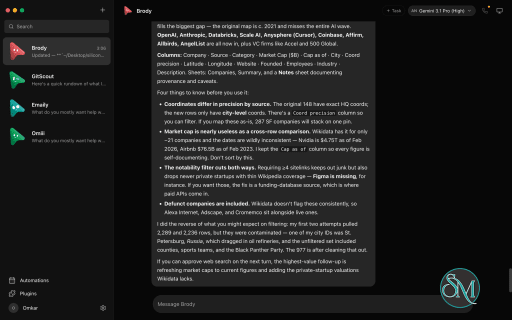
OpenMausBot is an open-source desktop application that allows users to manage various AI agents through an interface reminiscent of a messaging app. The project, formerly known as OpenGrokBot, serves as an alternative to centralized AI personal assistants. It enables users to integrate their own AI tools and organize them into a collection of specialized bots.
Each bot can have its own distinct personality, a specific underlying model, conversation history, computing environment, and connected applications. Instead of relying on a single, universal assistant, users can create agents dedicated to specific tasks such as software development, research, or system administration, among other areas.
OpenMausBot supports Claude, Codex, and Grok models via their respective local command-line interfaces. Furthermore, the application allows for the use of custom tools, connections to OpenAI-compatible endpoints, and various other integration methods. It is currently available for Windows, macOS, and Ubuntu (via the AppImage format).
Features
Multiple AI Agents
OpenMausBot allows users to create multiple AI bots, each with its own instructions, model, and conversation history. Users can switch between agents through a sidebar that works similarly to a messaging application.
This approach makes it easier to organize different responsibilities. For example, one bot can handle programming tasks, another can research technical documentation, and another can assist with project management.
Users can also change an agent's model during an existing conversation, depending on the available provider integrations.
Local AI Agent Execution
One of OpenMausBot's main advantages is its local-first architecture. It uses a local harness server to manage agent processes and communicate with the desktop interface.
The application integrates with installed Claude, Codex, and Grok command-line tools, allowing users to use their existing provider accounts and subscriptions. Custom CLI binaries and compatible engines can also be configured.
Conversation transcripts, credentials, and runtime events are stored locally under the OpenMausBot configuration directory rather than being managed entirely by a centralized cloud service.
However, local execution does not mean every operation stays offline. Cloud AI providers, connected applications, and remote computer environments still require external services.
Dedicated Computer Environments
Each agent can work with its own computer environment. OpenMausBot supports cloud Linux desktops, isolated local virtual machines, and native computer control on supported platforms.
The computer panel provides a live screen preview and an option to open the remote desktop in a browser. This allows users to observe an agent's work and interact with its environment.
Native computer control is platform-dependent. macOS supports the feature, while Ubuntu Xorg requires explicit opt-in and remains in beta. Ubuntu Wayland currently disables host control because of an unresolved safety limitation.
Permission and Approval System
OpenMausBot includes a permission broker that presents certain actions as approval cards. Users can allow or deny shell commands, file modifications, and other requests directly from the conversation.
This is an important feature for agents that can interact with files and computer environments. It gives users more visibility into actions instead of allowing every operation to happen silently.
Nevertheless, users should not assume that every interaction requires approval or that the application provides complete isolation. Review the security documentation and understand the permissions granted to each agent before connecting important files or accounts.
Connected Applications
Through Composio, OpenMausBot can connect agents to external applications such as Gmail, Slack, GitHub, Notion, and Linear, along with hundreds of other supported integrations.
Connections use OAuth-based authentication, allowing agents to interact with approved services without requiring users to manually provide passwords to each bot.
This makes OpenMausBot useful for workflows that involve more than coding. Agents can assist with email, project management, issue tracking, and other connected services.
Composio requires its own account and configuration, and some integrations may have usage limitations or additional costs.
Channels and Team Organization
Channels help organize conversations around different projects or contexts. Each channel can have its own transcript, instructions, working directory, agent roster, and responder rules.
Users can create separate environments for work, personal projects, and individual development tasks without duplicating every agent.
The application also supports importing complete AI teams from Markdown files. These packages can include agent profiles, instructions, channels, playbooks, and suggested routines, making it easier to reuse predefined workflows.
Agent Collaboration
OpenMausBot supports communication between agents and allows them to coordinate work through shared channels.
A primary agent can delegate tasks to other bots, collect their responses, and coordinate a larger workflow. This is useful for projects that benefit from different specialized roles, such as implementation, testing, research, and review.
The effectiveness of collaboration still depends on the selected models and task instructions. Running multiple agents can also increase resource consumption and AI usage.
Scheduling and Webhook Automation
The application includes triggers for recurring tasks and event-driven workflows. Users can configure schedules, webhooks, and connected-app events to start an agent automatically.
Examples include generating regular inbox summaries, responding to incoming events, and running recurring research tasks.
Triggers can be managed through the application's interface, where users can inspect their schedules, pause automations, and review execution history.
However, OpenMausBot must remain available to process local webhook deliveries. Its webhook receiver is not an always-on hosted service, so external access requires an appropriate relay or network configuration.
Voice Interaction
OpenMausBot supports spoken responses through several voice providers, including ElevenLabs, Fish Audio, and Grok. It also supports built-in Mac voices and a local Chatterbox server.
Users can assign different voices to individual agents, making it easier to distinguish between bots during spoken interactions.
Voice calls and native dictation have platform limitations. The current call functionality is macOS-only, while some hosted voice features require separate API credentials.
MCP and Command-Line Integration
OpenMausBot includes a Model Context Protocol server that allows compatible external clients, such as Claude Desktop and Cursor, to interact with its agent workspace.
The MCP integration exposes operations for inspecting bots and channels, searching conversation history, creating tasks, sending messages, changing models, and interrupting agent execution.
It also provides a command-line interface for automating workflows and running tasks from scripts or CI environments. This makes the project more flexible than a conventional desktop chat application.
Performance and Compatibility
OpenMausBot uses Electron for its desktop application, with React, Vite, and Tailwind CSS powering the interface. A separate local harness server manages agent processes and streams events to the application.
Its performance depends heavily on the connected AI models, local hardware, and selected computer environment. The desktop interface itself is relatively lightweight compared with the resources required by active AI agents and virtual machines.
The application supports:
macOS: Apple silicon and Intel processors.
Windows: 64-bit Windows systems.
Linux: Ubuntu 24.04 x64, distributed through DEB and AppImage packages.
Windows and macOS have released desktop builds, while Ubuntu remains in beta. Some computer-control capabilities are restricted depending on the Linux display server.
OpenMausBot is particularly appealing to users who already work with command-line AI agents and want a unified interface for managing them. However, users who expect a completely self-contained application should understand that provider authentication, command-line tools, connected services, and optional cloud computers require separate setup.
System Requirements
The requirements depend on the operating system and the AI tools being used.
macOS: Apple silicon or Intel Mac.
Windows: 64-bit Windows desktop environment.
Linux: Ubuntu 24.04 x64, with GNOME as the documented supported desktop environment.
Development environment: Node.js 24 or newer and pnpm when running from source.
AI providers: At least one supported agent CLI, such as Claude, Codex, or Grok, installed and authenticated.
Additional credentials are optional for basic local agent functionality but required for certain integrations, including Composio, Boat cloud computers, and hosted voice providers.
Pros and Cons
Pros
Open-source desktop application under Apache 2.0, excluding the separately licensed enterprise directory.
Manages multiple AI agents from one interface.
Supports Claude, Codex, and Grok through local CLI tools.
Allows custom engines and compatible model endpoints.
Provides dedicated computer environments for agents.
Includes permission cards for reviewing sensitive operations.
Integrates with hundreds of external applications through Composio.
Supports agent collaboration, channels, and task delegation.
Includes scheduling, webhooks, and event-driven automation.
Provides MCP and CLI interfaces for external automation.
Stores conversations and configuration locally.
Supports Windows, macOS, and Ubuntu.
Cons
Ubuntu desktop support remains in beta.
Some computer-control features are unavailable on Ubuntu Wayland.
Requires separate AI provider authentication and command-line tools.
Cloud computers and connected applications may introduce additional costs.
Some voice and calling features are platform-dependent.
API keys entered through the setup process are stored as plaintext in the local configuration file.
The project is still under active development, so some capabilities may change.
How to Install
Visit the official OpenMausBot GitHub repository.
Open the Releases section and download the package for your operating system.
Install the application using the downloaded installer.
Launch OpenMausBot and complete the initial setup.
Authenticate at least one supported AI provider, such as Claude, Codex, or Grok.
Create your first bot and configure its personality, instructions, and model.
Add additional agents for other tasks or projects.
Configure optional integrations such as Composio or cloud computer access.
Review the permission and security settings before allowing agents to interact with important files or connected accounts.
For developers who want to build from source, the repository provides a pnpm-based workflow:
git clone https://github.com/milind-soni/OpenMausBot
cd OpenMausBot

pnpm install

pnpm dev:server
pnpm dev
pnpm dev:desktop
Node.js 24 or newer, pnpm, and at least one authenticated agent CLI are required.
Final Verdict
OpenMausBot is an interesting open-source project for users who want to move beyond a single AI assistant and build a team of specialized agents. Its combination of local agent execution, dedicated computer environments, connected applications, scheduling, and agent collaboration makes it a flexible workspace for more advanced AI workflows.
The project also stands out through its MCP and CLI integrations, which allow developers to incorporate the workspace into external tools and automation pipelines.
Its main limitations are the ongoing development status, platform-specific restrictions, and the need to configure external AI providers and services. Security also deserves attention, particularly when storing API credentials and allowing agents to control computers or access connected accounts.
OpenMausBot is a promising choice for developers and AI enthusiasts who want an extensible multi-agent workspace with local-first architecture. Its feature set goes beyond ordinary chatbot interfaces, although users should evaluate its security model and platform limitations before adopting it for important workflows.
Sources
Download OpenMausBot v0.1.180 - Software Mirrors |
|---|
OpenMausBot v0.1.180 for Windows |
OpenMausBot v0.1.180 for macOSOpenMausBot-intel.dmg | 327.91 MB OpenMausBot-0.1.180-x64.zip | 329.51 MB OpenMausBot-0.1.180-x64.dmg | 327.91 MB |
OpenMausBot v0.1.180 for LinuxOpenMausBot.AppImage | 314.61 MB OpenMausBot-x86_64.rpm | 230.76 MB OpenMausBot-amd64.deb | 266.11 MB OpenMausBot-0.1.180-x86_64.rpm | 230.76 MB |
Others Download related to OpenMausBot v0.1.180 |
OpenMausBot v0.1.180 Source Code |
OpenMausBot v0.1.180 Release Notes:What's new in 0.1.180Bots and work
Looks and chat
Devices and computers
Models and providers
MausBot Cloud
Fixes
npx [email protected] · https://www.npmjs.com/package/openmausbot/v/0.1.180 |
Developer:
MausBot community
Operating System:
Windows / macOS / Linux
Date Added:
2026-11-25T11:07:16.445Z
Categories:
Post a Comment/Report Broken Link: